2. How to Confirm Your UPS® Pickup Point Placard
Ensure your temporary UPS® Pickup Point placard is properly displayed and confirmed, so your specimen pickups can proceed smoothly.
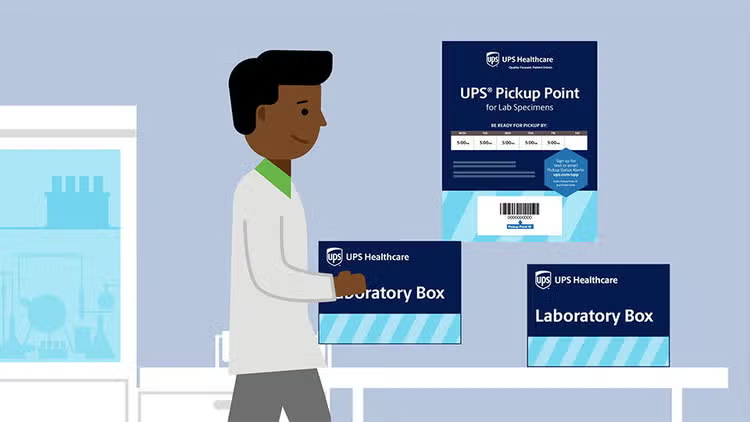
Step 1: Access Confirmation Email & Print Placard
- Open the UPS email with your temporary placard link.
- Print the placard in color and place it appropriately.
- Display the printed placard at the specified location where you leave your specimens and where it is accessible for a UPS driver to scan.
Step 2: Submit Confirmation
- Go back to the email
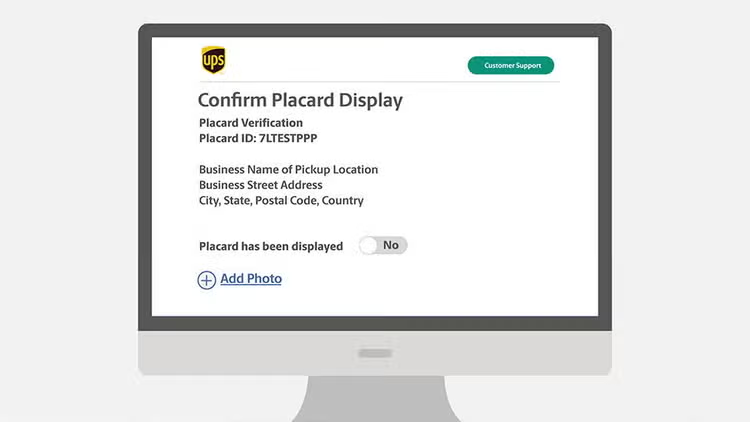
- Use the "confirm placard display" button in the email to go to the UPS confirmation site.
- Validate the address and toggle to confirm placard display. If the information does not match, please reach out to the contact on the placard.
Step 3: Upload a Photo Confirmation
- In the confirmation site, toggle the switch indicating the placard has been displayed.
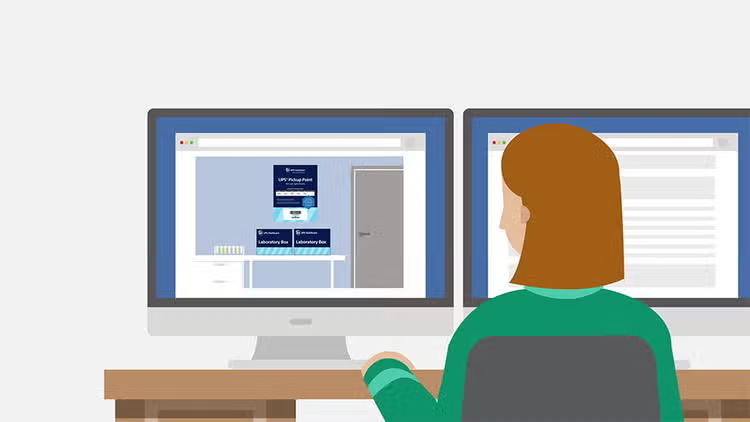
- Capture a photo of the placard 10-15 feet back from its display location.
- Upload the photo to the confirmation site. The UPS lab operations team will use this photo to review the location.
Step 4: Provide Additional Details
- Click "Next" to proceed.
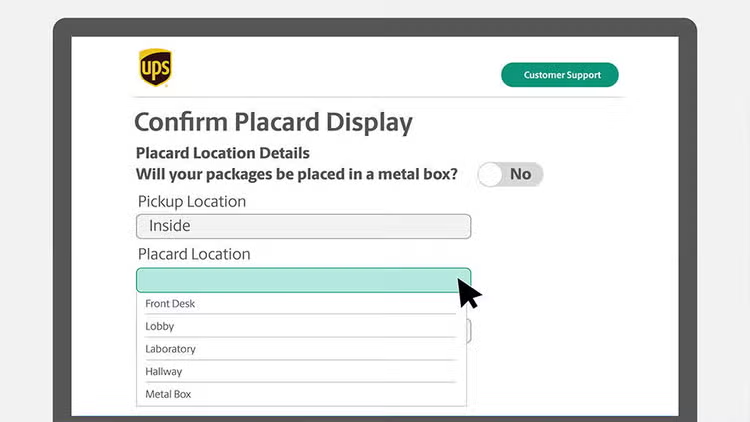
- Indicate if using a medical lock box and provide combination. If not locked, leave the lock combination field as "none."
- Specify pickup location as “inside” or “outside.”
- Use the dropdown to select the placard location (e.g., front desk, lobby).
- Provide additional details, such as "next to the door," for the driver's reference.
Step 5: Submit and Await Confirmation
- After filling out the form, click "Submit."
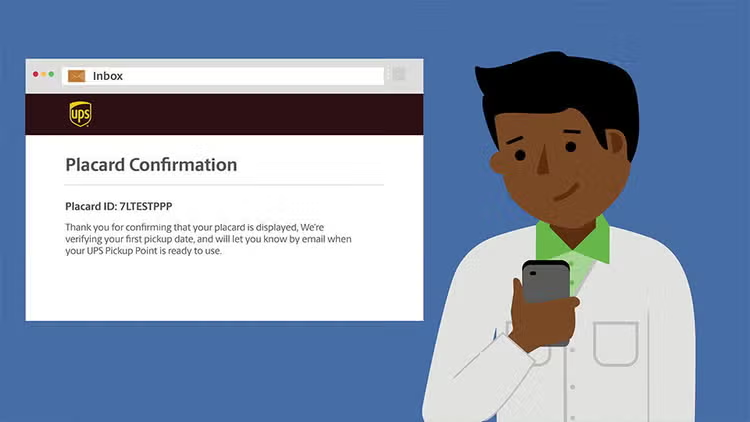
- You will receive a notification email once the process is complete, detailing the expected service start date.
- Expect the permanent placard to arrive within a few weeks.
More Resources:
Well Done! You have confirmed your UPS Pickup Point placard display, allowing for efficient specimen pickups.